
 by
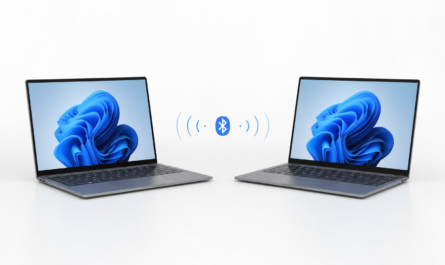
by If two Windows 11 machines are sitting next to each other but are connected to different Wi-Fi or Ethernet networks, you can still create a small direct communication path between them. My previous post showed how to build that path with a Bluetooth Personal Area Network, or Bluetooth PAN, and assign static IP addresses to the Bluetooth interfaces.
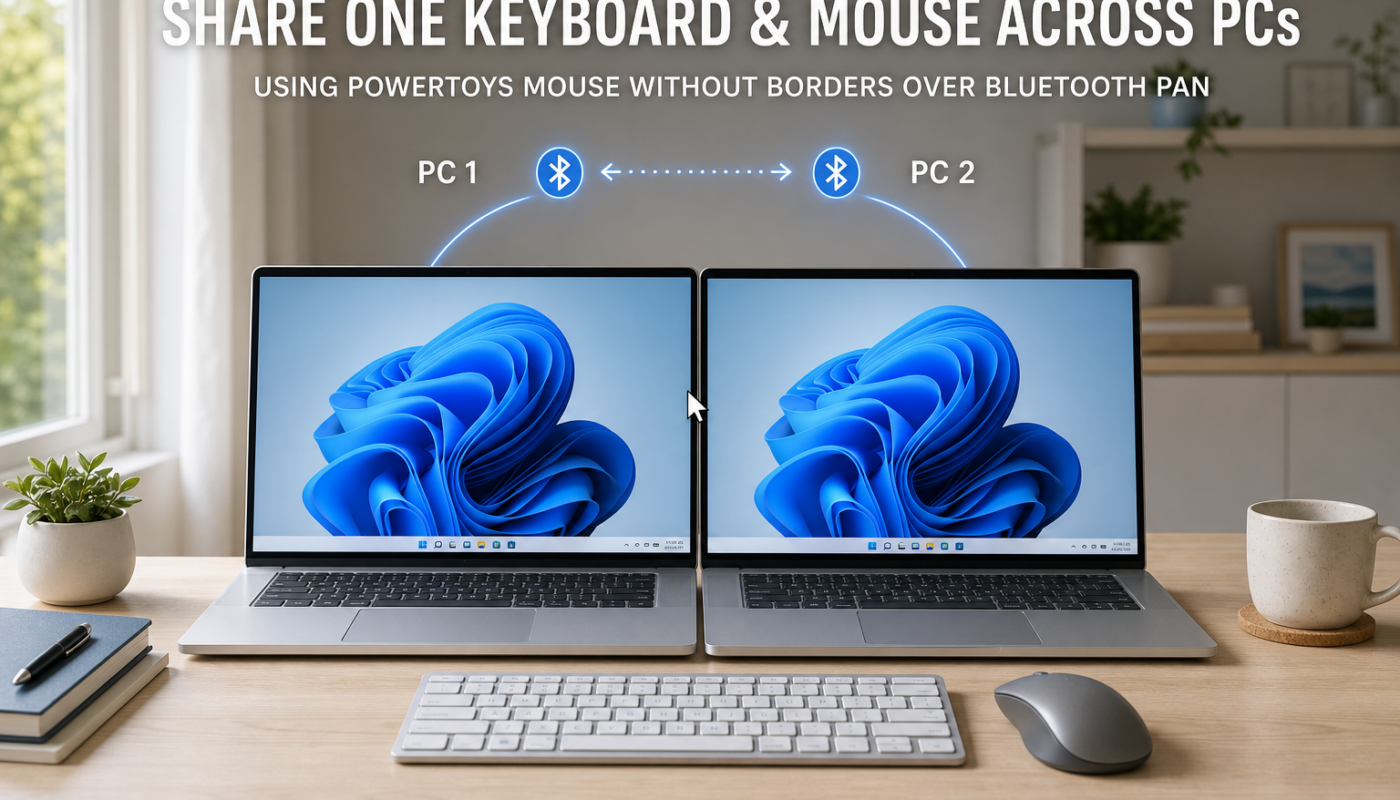
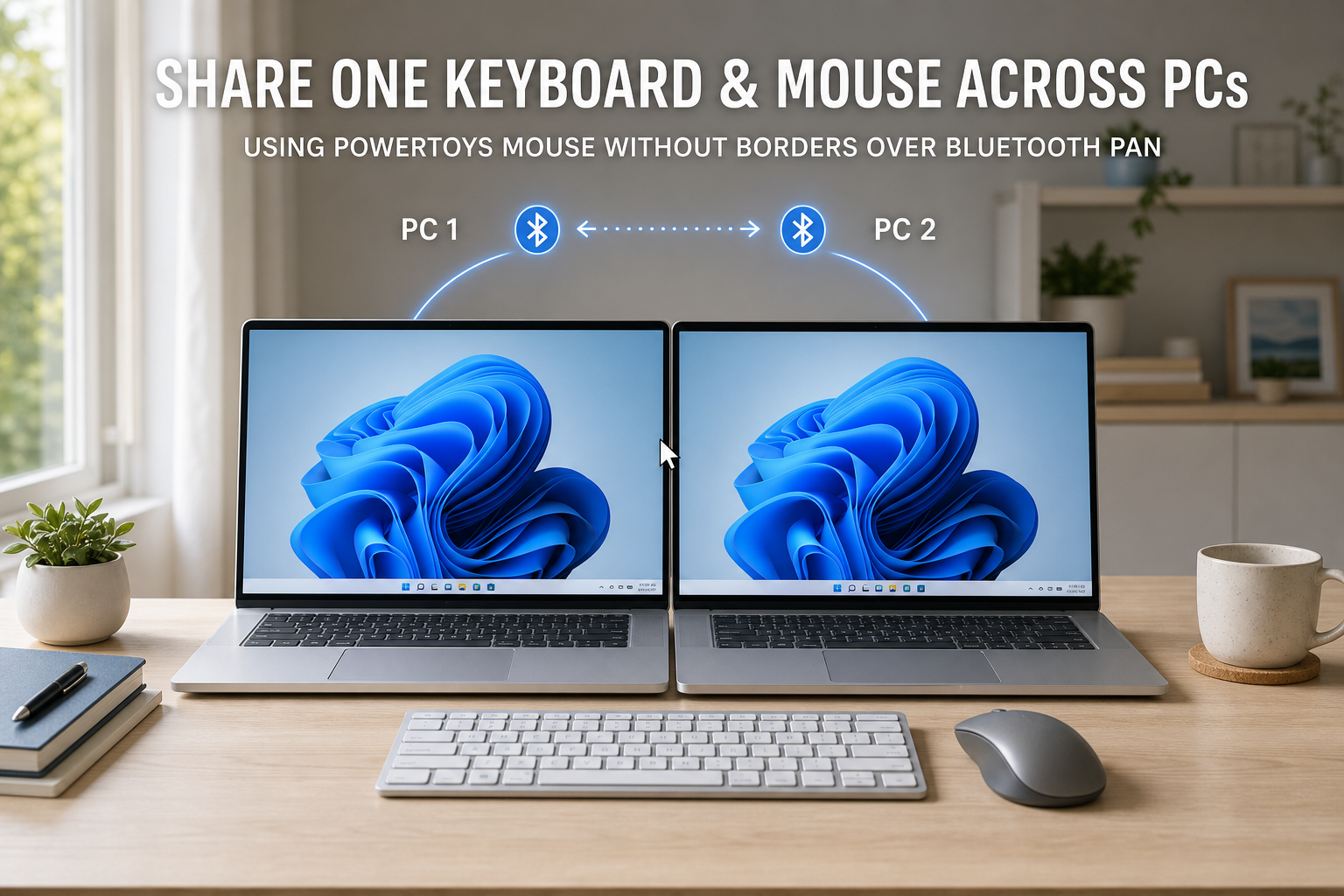
This follow-up takes that connection one step further. Once the machines can reach each other over the PAN subnet, Microsoft PowerToys Mouse Without Borders can use that IP path to let one physical keyboard and mouse control both computers. The primary networks remain separate; the Bluetooth PAN becomes the local link between the nearby machines.
Important qualification: Microsoft documents Mouse Without Borders for computers connected to the same network. The setup described here uses a separate Bluetooth PAN subnet as that reachable network path, even though each computer may also be connected to a different primary network. It is a practical topology that depends on the Bluetooth PAN link, Windows firewall rules, name resolution, and the specific PowerToys version working together. Treat it as a useful local setup, not as a guaranteed replacement for a normal LAN.
What this setup provides
- One keyboard and mouse controlling two nearby Windows PCs.
- A direct Bluetooth PAN link using static IP addresses.
- Separate primary Wi-Fi or Ethernet connections on each computer.
- Optional clipboard and single-file transfer features provided by Mouse Without Borders.
Microsoft currently documents Mouse Without Borders as supporting control of up to four computers from one machine. The application also provides a device layout so the cursor can move naturally from one screen to the next.
What you need
- Two or more Windows 11 PCs with compatible Bluetooth hardware and drivers.
- A working Bluetooth PAN link between the machines.
- Static IP addresses on the Bluetooth adapters, such as
192.168.50.1,192.168.50.2, and192.168.50.3. - Microsoft PowerToys installed on every computer.
- Administrator access if you need to install PowerToys or enable its service mode.
- A security key generated by Mouse Without Borders.
Step 1: Build and test the Bluetooth PAN first
Complete the earlier Bluetooth PAN guide before configuring Mouse Without Borders:
How to Connect Two Windows 11 PCs Over Bluetooth PAN Without an Ethernet Cable
The important checkpoint is not merely that the computers are paired. The Bluetooth network interfaces must be active and the computers must be able to reach each other using their PAN IP addresses.
- Confirm PC 1 uses a dedicated Bluetooth PAN address such as
192.168.50.1. - Confirm PC 2 uses another address on the same PAN subnet, such as
192.168.50.2. - From each computer, ping the other computer’s PAN address.
- Set the Bluetooth network profile to Private where appropriate.
- Keep the PAN subnet separate from both computers’ regular Wi-Fi or Ethernet subnets.
If ping does not work, stop here and fix the PAN, IP addressing, or firewall configuration first. Mouse Without Borders cannot repair a missing network path.
Step 2: Install PowerToys on every computer
- Install the current Microsoft PowerToys release on each Windows PC.
- Open PowerToys Settings.
- Select Mouse Without Borders from the left navigation.
- Make sure the feature is enabled on every computer.
Use the same current PowerToys release family across the machines where possible. Version differences are not always a problem, but matching versions makes troubleshooting easier.
Step 3: Generate the Mouse Without Borders security key
Choose one computer as the first or host computer. In Mouse Without Borders settings:
- Select New Key to generate a security key.
- Record the generated key temporarily in a secure way.
- Note the computer name shown in the same settings page.
The key is part of the trust relationship between the computers. Do not publish it in screenshots, blog comments, or shared documentation.
Step 4: Connect the second computer
On the second computer, open Mouse Without Borders and enter:
- The security key generated on the first computer.
- The computer name of the first computer.
Select Connect. Once the connection succeeds, the computers should appear in the Mouse Without Borders layout. Drag the device icons into the same left-to-right arrangement as the physical screens.
In this Bluetooth PAN design, hostname resolution may be the first problem. If the second computer cannot resolve the first computer’s name over the PAN interface, check the PAN IP configuration and the Mouse Without Borders settings. Where your PowerToys version provides them, review the Resolve DNS option and the IP Mappings tab inside Mouse Without Borders. Add a mapping such as PC-NAME 192.168.50.1 so the application can reach the first computer over the static PAN address without depending on broadcast discovery or a separate DNS service.
Step 5: Add the firewall rule
Mouse Without Borders needs traffic to pass between the computers. In its settings, use Add a firewall rule for Mouse Without Borders on each machine. Confirm that the rule applies to the intended Private network profile and is not unnecessarily exposed on Public networks.
If the application still shows a timeout or does not connect:
- Confirm that both PAN IP addresses respond to ping.
- Check that Windows Firewall is allowing Mouse Without Borders on the Bluetooth PAN profile.
- Confirm that the security key and computer name were entered correctly.
- Refresh the Mouse Without Borders connection after changing network or firewall settings.
- Temporarily test with a narrowly scoped firewall rule, then restore the least-permissive working configuration.
Step 6: Use one keyboard and mouse across the computers
When the connection is green and the layout is correct, move the mouse beyond the edge of the first screen. The pointer should move to the next computer, and the keyboard should follow the active computer.
This is useful for a desk with a work laptop and a personal laptop, a development machine beside a test machine, or a troubleshooting computer that must remain on a different primary network. The Bluetooth PAN handles the local path, while Mouse Without Borders handles the input-sharing experience.
What Mouse Without Borders does not solve
- It does not increase Bluetooth PAN bandwidth.
- It does not merge the two primary Wi-Fi or Ethernet networks.
- It does not create a VPN or provide enterprise network segmentation.
- It does not guarantee that every Bluetooth adapter exposes the PAN profile.
- Clipboard and file-transfer behavior has limitations, so use a deliberate file-sharing method for larger or sensitive transfers.
For example, Microsoft documents limitations around copying multiple files, folders, and network files. Treat the input-sharing feature and the file-transfer feature as separate capabilities.
Security considerations
- Use a unique Mouse Without Borders security key.
- Keep the Bluetooth PAN on a dedicated private subnet.
- Allow the application only on the Private profile where possible.
- Do not expose the PAN interface or Mouse Without Borders firewall rule to untrusted networks.
- Regenerate the key if a trusted machine is retired or the key may have been exposed.
- Do not enable service mode unless you need to control elevated applications or the lock screen.
- Do not use this setup to bypass corporate endpoint management. Bridging a managed work computer and a personal unmanaged computer through clipboard sharing or file transfer can violate enterprise DLP policies and may be flagged by endpoint security controls.
Service mode provides additional control, but it also increases the impact if the input-sharing trust relationship is compromised. Use it only when the workflow requires it.
Common failure points
- Mouse Without Borders times out: test the PAN IP path and firewall before changing the application settings.
- The computer name is not found: check name resolution or use a controlled hosts-file mapping to the static PAN address.
- Pairing works but no PAN adapter appears: the Bluetooth controller or driver may not expose the required PAN profile.
- The pointer crosses in the wrong direction: rearrange the device layout in Mouse Without Borders.
- Keyboard/mouse freezes on a UAC prompt or lock screen: by default, Mouse Without Borders cannot interact with elevated UAC prompts or the secure desktop. If you frequently install software or run apps as an administrator, enable Service Mode, keeping in mind the additional security tradeoff.
- The connection drops: reduce distance, check Bluetooth interference, and confirm that the PAN interface has not been replaced by a different network metric.
Conclusion
Bluetooth PAN creates the direct local network path; PowerToys Mouse Without Borders turns that path into a shared keyboard and mouse workspace. Together, they allow nearby Windows machines to cooperate even when their normal Wi-Fi or Ethernet connections belong to different networks.
The setup is best understood as a lightweight, local convenience for machines that are physically close. It is not a substitute for a reliable LAN, VPN, or managed remote-access design. But when the goal is to avoid another cable and keep two computers available from one desk, it is a useful extension of the Bluetooth PAN method.
Related reading
- How to Connect Two Windows 11 PCs Over Bluetooth PAN Without an Ethernet Cable
- Microsoft PowerToys Mouse Without Borders documentation
- How to set up a Windows Power Automate Desktop worker machine