
 by
by Anyone who has closed a major financial, legal, or property transaction knows the exact paperwork nightmare that follows the closing table. You sign dozens of physical forms, contracts, and sanction letters across a conference table. To digitize them quickly, mobile scanner apps or smartphone cameras snap page after page in rapid succession.
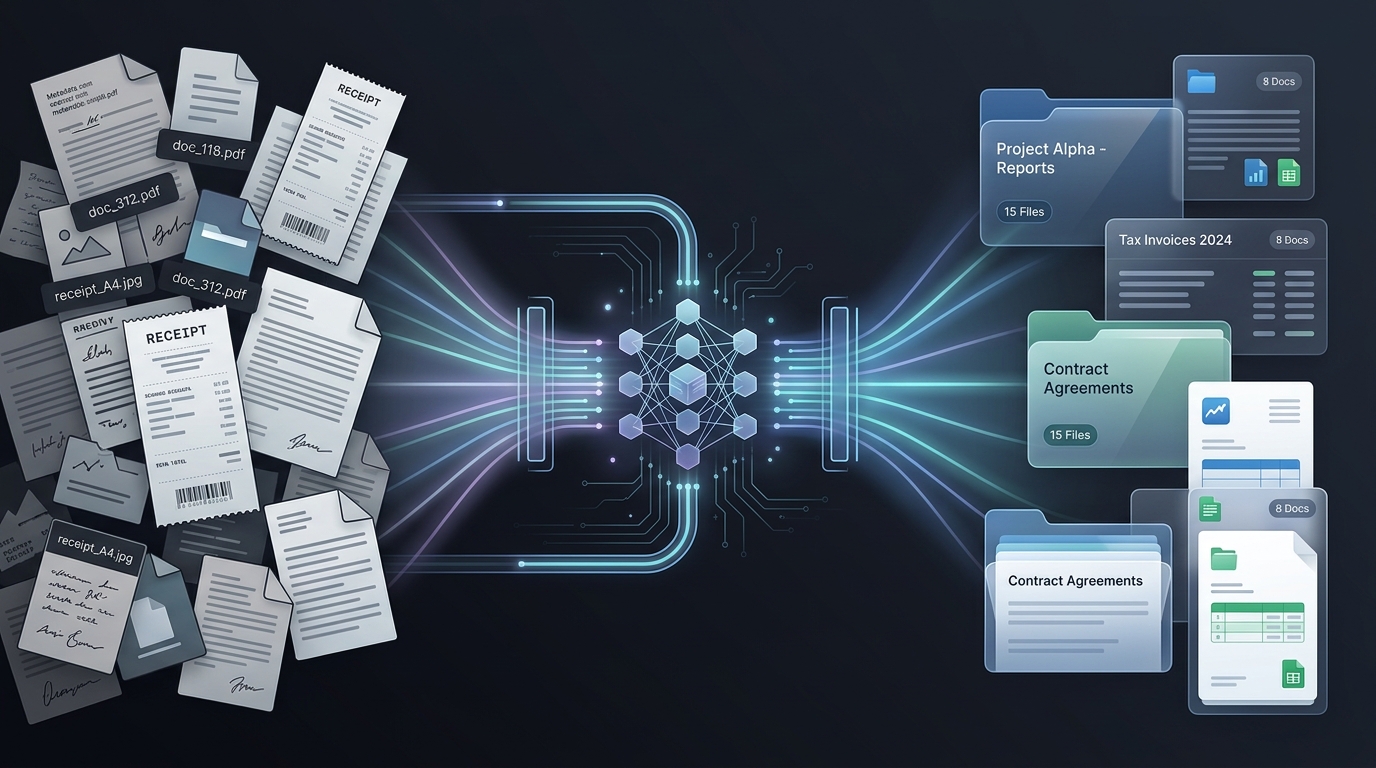
The resulting digital payload is an absolute operational mess:
- Arbitrary, unreadable filenames like
IMG_20261004_1879789263.jpgorscan_0032.jpg. - Completely mixed orientations—some pages portrait, some landscape, and a frustrating subset flipped 180° upside down.
- Interleaved documents where Page 3 of an application form sits between Page 12 of a master loan agreement and an e-Stamp certificate.
- Casual incidental snapshots accidentally caught in the batch—a quick photo of a payment voucher, a banker’s business card, or a document envelope.
Manually opening 100 images, squinting at headers, rotating upside-down scans, grouping related agreements, and prepending 01_, 02_ prefixes for a merged PDF usually eats two to three hours of frustrating manual labor. Worse, because these files contain bank details, signatures, tax identifiers, and PII, uploading the batch to a random “free PDF merger” website is a massive security compliance violation.
In this guide, we break down how we built a completely local, air-gapped document reassembly pipeline that processed 98 messy scans, identified 15 distinct document groups, correctly sequenced 95 multi-page agreements, isolated 3 non-document outliers, and generated clean PDF-ready folders in under 60 seconds. No external cloud APIs. No recurring subscription fees. Zero data leakage.
1. Architecture: The Local Reassembly Pipeline
The pipeline avoids dumping raw gigabytes of high-resolution image data into an AI context window. Instead, it leverages a four-stage decoupled pipeline:
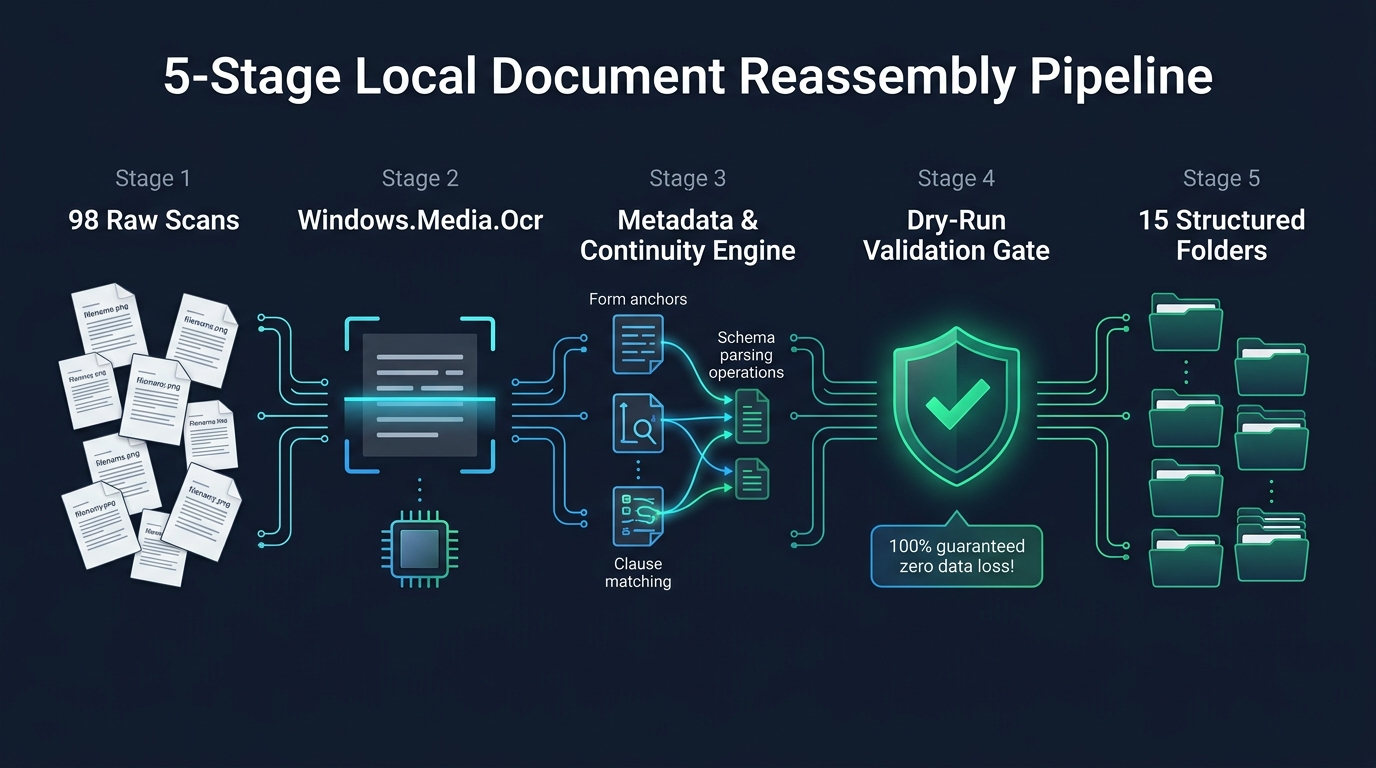
flowchart LR
    A["📄 98 Raw Scans
Tilted / Arbitrary Names"] --> B["🔍 Windows.Media.Ocr
In-Memory Text Extraction"]
    B --> C["🧩 Continuity Engine
Anchor & Clause Matching"]
    C --> D["🛡️ Dry-Run Gate
Pre-Flight Validation"]
    D --> E["📁 15 Clean Folders
Sequenced Legal PDF"]

    style A fill:#1e293b,stroke:#3b82f6,stroke-width:2px,color:#f8fafc
    style B fill:#1e293b,stroke:#a855f7,stroke-width:2px,color:#f8fafc
    style C fill:#1e293b,stroke:#f59e0b,stroke-width:2px,color:#f8fafc
    style D fill:#1e293b,stroke:#10b981,stroke-width:2px,color:#f8fafc
    style E fill:#064e3b,stroke:#34d399,stroke-width:2px,color:#f8fafc
📋 Click to view / copy raw Mermaid source
flowchart LR
    A["98 Raw Scans (Tilted / Arbitrary Names)"] --> B["Windows.Media.Ocr (In-Memory Extraction)"]
    B --> C["Continuity Engine (Anchor & Clause Matching)"]
    C --> D["Dry-Run Gate (Pre-Flight Validation)"]
    D --> E["15 Clean Folders (Sequenced Legal PDF)"]
Stage 1: High-Speed Local Text Extraction with Windows.Media.Ocr
Installing heavy machine-learning OCR models (like PaddleOCR or bulky Docker containers) is overkill when Windows 10 and 11 already ship with an enterprise-grade OCR engine built straight into the OS: Windows.Media.Ocr. It is hardware-accelerated, runs completely offline, and processes an image in under 400 milliseconds.
Here is the PowerShell core that initialises the native Windows OCR engine without any third-party dependencies:
# Initialize the Windows Native OCR Runtime
Add-Type -AssemblyName System.Runtime.WindowsRuntime
$asTaskGeneric = ([System.WindowsRuntimeSystemExtensions].GetMethods() | ? {
    $_.Name -eq 'AsTask' -and $_.GetParameters().Count -eq 1 -and $_.GetParameters()[0].ParameterType.Name -eq 'IAsyncOperation`1'
})[0]

Function Await($WinRtTask, $ResultType) {
    $asTask = $asTaskGeneric.MakeGenericMethod($ResultType)
    $netTask = $asTask.Invoke($null, @($WinRtTask))
    $netTask.Wait(-1) | Out-Null
    $netTask.Result
}

[Windows.Globalization.Language, Windows.Foundation, ContentType=WindowsRuntime] | Out-Null
[Windows.Graphics.Imaging.BitmapDecoder, Windows.Foundation, ContentType=WindowsRuntime] | Out-Null
[Windows.Media.Ocr.OcrEngine, Windows.Foundation, ContentType=WindowsRuntime] | Out-Null

# Set language to English (United States or United Kingdom)
$lang = [Windows.Globalization.Language]::new("en-US")
$ocrEngine = [Windows.Media.Ocr.OcrEngine]::TryCreateFromLanguage($lang)
To extract the text from a local scan file, we open a file stream and feed the software bitmap into the engine:
Function Get-LocalImageOcr {
    Param([string]$ImagePath)

    $file = [Windows.Storage.StorageFile]::GetFileFromPathAsync((Resolve-Path $ImagePath).Path)
    $storageFile = Await $file ([Windows.Storage.StorageFile])

    $stream = Await ($storageFile.OpenAsync([Windows.Storage.FileAccessMode]::Read)) ([Windows.Storage.Streams.IRandomAccessStream])
    $decoder = Await ([Windows.Graphics.Imaging.BitmapDecoder]::CreateAsync($stream)) ([Windows.Graphics.Imaging.BitmapDecoder])
    $bitmap = Await ($decoder.GetSoftwareBitmapAsync()) ([Windows.Graphics.Imaging.SoftwareBitmap])

    $ocrResult = Await ($ocrEngine.RecognizeAsync($bitmap)) ([Windows.Media.Ocr.OcrResult])
    Return $ocrResult.Text
}
Benchmarking note: Running this across our 98 images took 52 seconds total on an ordinary Intel i7 laptop, consuming negligible RAM and zero network bandwidth.
Stage 2: Heuristic Metadata Extraction (Instead of Raw Prompt Dumps)
A rookie mistake when applying AI to document processing is dumping full OCR transcripts into a large language model. This is slow, burns tokens, and increases the risk of hallucination or PII leakage. As we explored in our guide on safely managing enterprise credentials and private data, minimum viable disclosure is always the superior architectural pattern.
Instead, we parse the raw OCR string with regex patterns to extract four structural anchors per image:
- Document Type Identifier: Matches against formal headings, form codes, or letterhead stamps (e.g.,
SANCTION TERMS,SCHEDULE B,FACILITY AGREEMENT,E-STAMP CERTIFICATE). - Explicit Pagination: Standard page indicators such as
Page (\d+) of (\d+)or footer indices. - Continuity Signatures: The first 20 words of the top paragraph and the trailing 20 words of the bottom paragraph. If a page ends mid-sentence (e.g., “…the Borrower shall remain liable to pay the—”) and the next scan starts with “—full outstanding balance within 30 days…”, you have a deterministic structural link regardless of what the file names are.
- Non-Document Flag: If the total extracted word count is below 15 words or has low dictionary confidence, it is immediately tagged as an outlier candidate (e.g., casual photo of an envelope or ID card).
Stage 3: Deterministic Sequencing and Dry-Run Verification
Once each file has its structural fingerprint, a lightweight local script aggregates the results into an execution plan. In our real-world dataset of 98 images:
- 17 pages formed the Master Multi-Party Facility Agreement (containing custom manual page offsets from 129 to 145).
- 14 pages formed the Sanction Terms & Acceptance letter.
- 8 pages formed the Applicant KYC Dossier.
- 12 separate 1-to-3 page filings (e-Stamps, insurance undertakings, loan disbursement schedules).
- 3 incidental images (a photo of the physical folder cover, a desk calculator, and a cash slip).
Before moving or renaming a single file, the pipeline generates a dry-run JSON manifest. If you run destructive file movements without a validation gate, an unhandled duplicate will overwrite an agreement page, corrupting your legal records forever.
# Verification Gate: Inspect Planned Movements Before Touching Disk
def validate_execution_plan(manifest):
    source_files = set()
    dest_files = set()

    for item in manifest['actions']:
        src = item['source_path']
        dst = item['target_path']

        assert os.path.exists(src), f"Missing source file: {src}"
        assert src not in source_files, f"Duplicate source assignment: {src}"
        assert dst not in dest_files, f"Destination collision: {dst}"

        source_files.add(src)
        dest_files.add(dst)

    print(f"Validation Passed: {len(source_files)} files mapped cleanly across {len(manifest['folders'])} folders.")
Stage 4: Idempotent Execution and Folder Structuring
With validation passed, the script creates 15 target folders and copies the files with zero-padded sequential prefixes (e.g., 01_Master_Facility_Agreement_Page_01.jpg through 17_Master_Facility_Agreement_Page_17.jpg). The three incidental images remain untouched in the root directory for manual review.
If you need to compile these into PDFs later, command-line utilities like img2pdf or the CLI tools we discussed in our guide on managing and cleaning PDFs locally can combine each folder into an uncompressed, searchable PDF in a single command:
# Merge sorted folder scans directly into clean PDFs
Get-ChildItem -Directory | ForEach-Object {
    $pdfName = "$($_.Name).pdf"
    img2pdf (Get-ChildItem "$($_.FullName)\*.jpg" | Sort-Object Name | Select-Object -ExpandProperty FullName) -o $pdfName
}
Executive Takeaways: Why Local Pipelines Win
- Zero Cloud Privacy Exposure: Sensitive financial schedules, signatures, and legal obligations never leave the local endpoint. There are no SaaS API tokens or retention risks.
- Instant Speed: 98 images analyzed, grouped, and reassembled in 52 seconds, saving roughly 2.5 hours of tedious manual orientation and renaming work.
- Zero Cost: Leverages existing Windows 10/11 built-in OCR libraries without paying per-page cloud extraction charges.
In Part 2 of this series, we will dive deep into the math behind orientation-agnostic OCR: how to automatically detect whether a scan is sideways or completely upside-down using 4-pass confidence scoring before sorting takes place.