

 by
by PDF passwords are useful when a document needs basic protection, but there are legitimate cases where you need to remove a password from your own PDF: archiving, combining files, OCR processing, or uploading to a system that cannot handle protected PDFs.
Important safety boundary
This workflow is only for PDFs you own or are explicitly authorized to modify. It is not for bypassing someone else’s document protection, DRM, legal restrictions, or confidentiality controls.
Practical toolchain
- qpdf is the clean command-line tool I would start with for owner-authorized PDF password removal.
- Poppler tools are useful for validating page count and rendering after processing.
- PowerShell is enough to batch-process folders once the command is tested on one file.
- Power Automate Desktop can wrap the workflow for non-technical users if needed.
Basic command pattern
qpdf --password="your-password" --decrypt input.pdf output-unlocked.pdfAlways write to a new output file first. Do not overwrite the original until the result has been checked.
Validation checklist
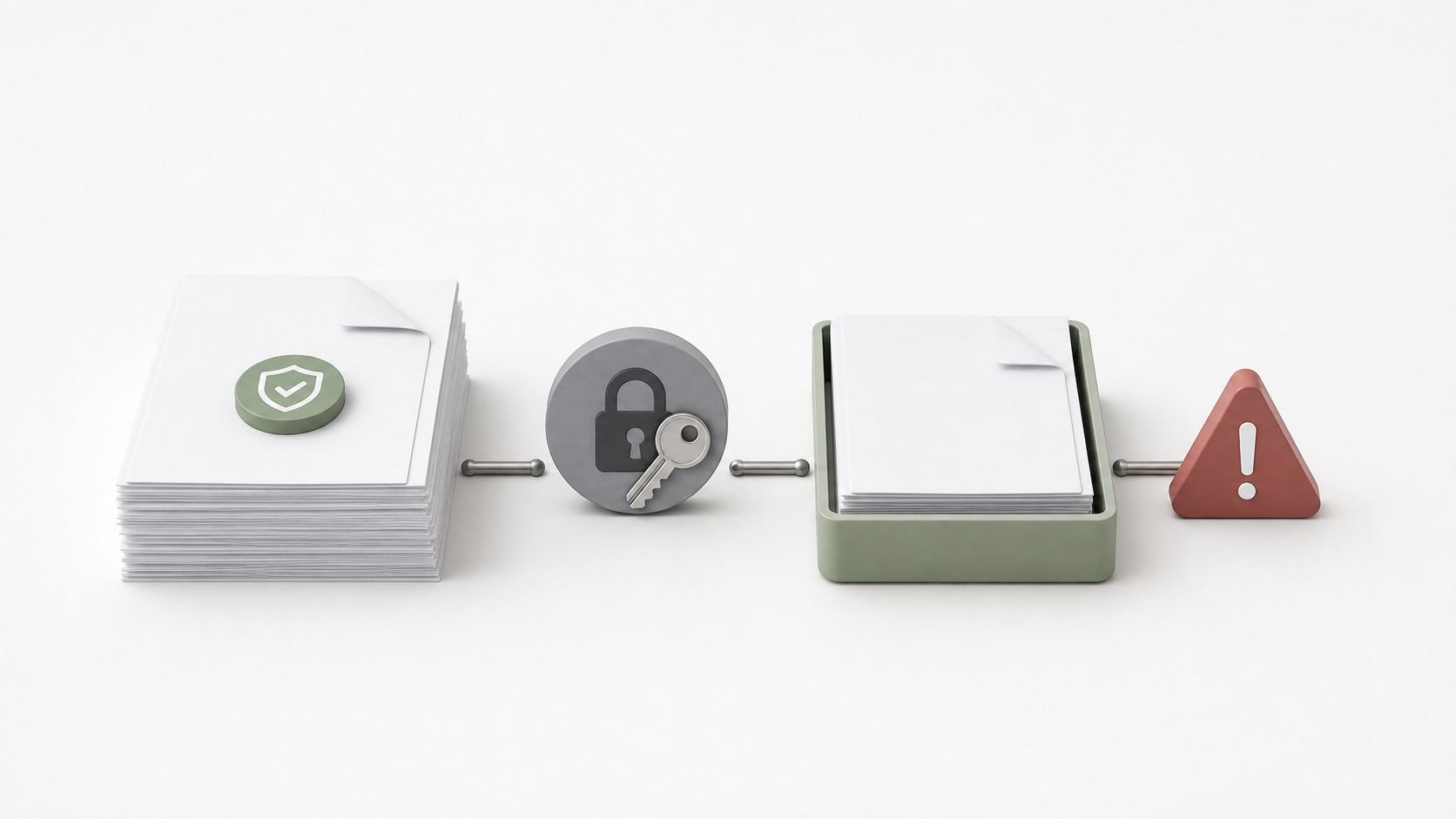
- Open the output PDF and confirm all pages are present.
- Check file size and page count against the original.
- Search for text if the file is expected to be searchable.
- Keep the original protected file until the unlocked copy is verified.
- Store the unlocked copy only where it is allowed to live.
Batch idea
Once the one-file test works, a PowerShell loop can process a folder of owned PDFs. Keep logging simple: input filename, output filename, result, and error message if the command fails.
Related reading
- Older PDF password removal article
- Introduction to Windows Power Automate Desktop
- Power Automate Desktop worker machine setup