
 by
by If you’re using AI tools like Codex, Claude, Cursor, or other MCP-capable assistants to automate homelab administration, one question comes up very quickly:
How do I let the AI run useful tasks without pasting passwords into chat or storing secrets directly in .env files?
This became especially relevant for me while automating administrative tasks around Proxmox and other self-hosted services. A simple .env file works, but once automation grows, it starts feeling a bit too loose. API tokens, SSH credentials, Proxmox secrets, Cloudflare tokens, database passwords — they all need a better home.
That’s where Bitwarden, Vaultwarden, Secrets Manager, and MCP enter the picture.
The goal is not to give AI unlimited access to your vault. The goal is to create a controlled path where automation can retrieve only the secrets it needs, preferably read-only, and use them without leaking them into logs, git, or chat history.
What We’re Trying to Solve
A typical homelab automation setup may start like this:
PROXMOX_HOST=https://pve.local:8006
PROXMOX_USER=root@pam
PROXMOX_PASSWORD=super-secret-password
CLOUDFLARE_API_TOKEN=another-secret
This is convenient, but it has problems:
.envfiles can accidentally get committed to git.- Passwords often stay on disk longer than needed.
- It becomes hard to rotate credentials.
- Every script with access to the file gets access to everything.
- If an AI assistant reads the file, the secret may enter the assistant context.
For local testing, .env is fine if it is properly ignored by git. But for long-term automation, a secrets manager is a better pattern.
The Better Approach
For homelab and Proxmox automation, the clean setup looks like this:
AI Assistant
  -> MCP or approved script
    -> Bitwarden / Vaultwarden / Secrets Manager
      -> named secret only
        -> script uses secret
          -> secret is not printed
The important part is this:
The AI should not browse your entire vault. It should only retrieve specific secrets required for the current task.
For example:
proxmox-api-token
cloudflare-dns-token
nginx-proxy-manager-api-token
ssh-deploy-key-passphrase
Each secret should be scoped to one job or one system.
Option 1: Bitwarden Password Manager + MCP
Bitwarden now has an MCP server that allows AI assistants to interact with Bitwarden through the Model Context Protocol.
The official Bitwarden MCP server can work with the Bitwarden CLI and allows actions like reading vault items, generating passwords, retrieving TOTP codes, and managing vault entries.
This is powerful, but it needs care.
Bitwarden itself warns that this MCP server should be used locally only and never exposed publicly. That makes sense because once you connect an AI assistant to a password manager MCP server, you are giving that assistant a path to sensitive vault data.
For a personal vault, I would be very cautious.
For shared automation credentials, it can work if you isolate access properly.
Can It Be Read-Only?
Yes, partially.
If you use Bitwarden organization collections, you can create a dedicated user for AI automation and grant that user access only to a specific collection.
For example:
User: [email protected]
Collection: Homelab Automation
Permission: View items
This limits what the AI user can access.
But there is an important catch:
Read-only does not mean secret-hidden.
Read-only usually means the user cannot edit, delete, or create items. But if the user can read the item, they may be able to read the password or token value.
Bitwarden also has “hidden passwords” style permissions, but those should not be treated as a strong security boundary. Hidden passwords can reduce casual visibility, but they do not fully prevent technical access in every workflow.
So the better mindset is:
If the AI account can use the secret, assume it may be able to see the secret.That sounds obvious, but it matters when deciding what to expose.
Option 2: Bitwarden Secrets Manager
For infrastructure automation, this is the cleaner option.
Bitwarden Secrets Manager is designed for machine secrets rather than personal passwords. Instead of giving an AI user access to your normal password vault, you create projects and machine accounts.
Example structure:
Project: proxmox-automation

Secrets:
  PROXMOX_HOST
  PROXMOX_TOKEN_ID
  PROXMOX_TOKEN_SECRET
  CLOUDFLARE_DNS_TOKEN

Machine Account:
  codex-ai-automation

Access:
  Can read
This is much closer to how automation should work.
The machine account can be granted access only to the project it needs. If the AI automation only manages Proxmox, it does not need access to personal passwords, banking logins, email accounts, or unrelated app credentials.
That separation is the win.
Recommended Setup for Homelab AI Automation
Here’s the setup I would use.
1. Create Scoped Proxmox API Tokens
In Proxmox, avoid using root@pam passwords for automation.
Create a dedicated Proxmox user or API token with only the permissions required.
Example:
User: ai-automation@pve
Token: codex
Permissions: limited to selected nodes, VMs, storage, or audit tasks
Where possible, separate tasks:
proxmox-readonly-token
proxmox-backup-token
proxmox-vm-admin-token
Don’t give one token full control unless the automation genuinely needs it.
2. Store Tokens in Bitwarden Secrets Manager
Create a project:
proxmox-automationAdd secrets:
PROXMOX_HOST
PROXMOX_TOKEN_ID
PROXMOX_TOKEN_SECRET
Then create a machine account:
codex-ai-automationGrant it:
Can readOnly for that project.
3. Fetch Secrets at Runtime
Instead of storing secrets permanently in .env, let scripts fetch them when needed.
Conceptually:
$env:PROXMOX_TOKEN_SECRET = bws secret get PROXMOX_TOKEN_SECRETOr better, wrap it so the secret is never printed to the terminal.
Example flow:
run-proxmox-task.ps1
  -> fetch named secrets
  -> call Proxmox API
  -> clear variables
This way, the script gets what it needs, when it needs it.
4. Avoid Printing Secrets
This is the most important operational rule.
Never do this:
Write-Host $env:PROXMOX_TOKEN_SECRETAvoid logging full API headers, request bodies, or .env dumps.
When debugging, mask values:
PROXMOX_TOKEN_SECRET=********AI tools are very good at helping troubleshoot, but if the secret gets printed into the session, it may become part of the working context.
Where MCP Fits In
MCP is useful because it gives AI assistants a standard way to talk to tools like Bitwarden, Vault, GitHub, databases, browsers, and local scripts.
But MCP is not magic security by itself.
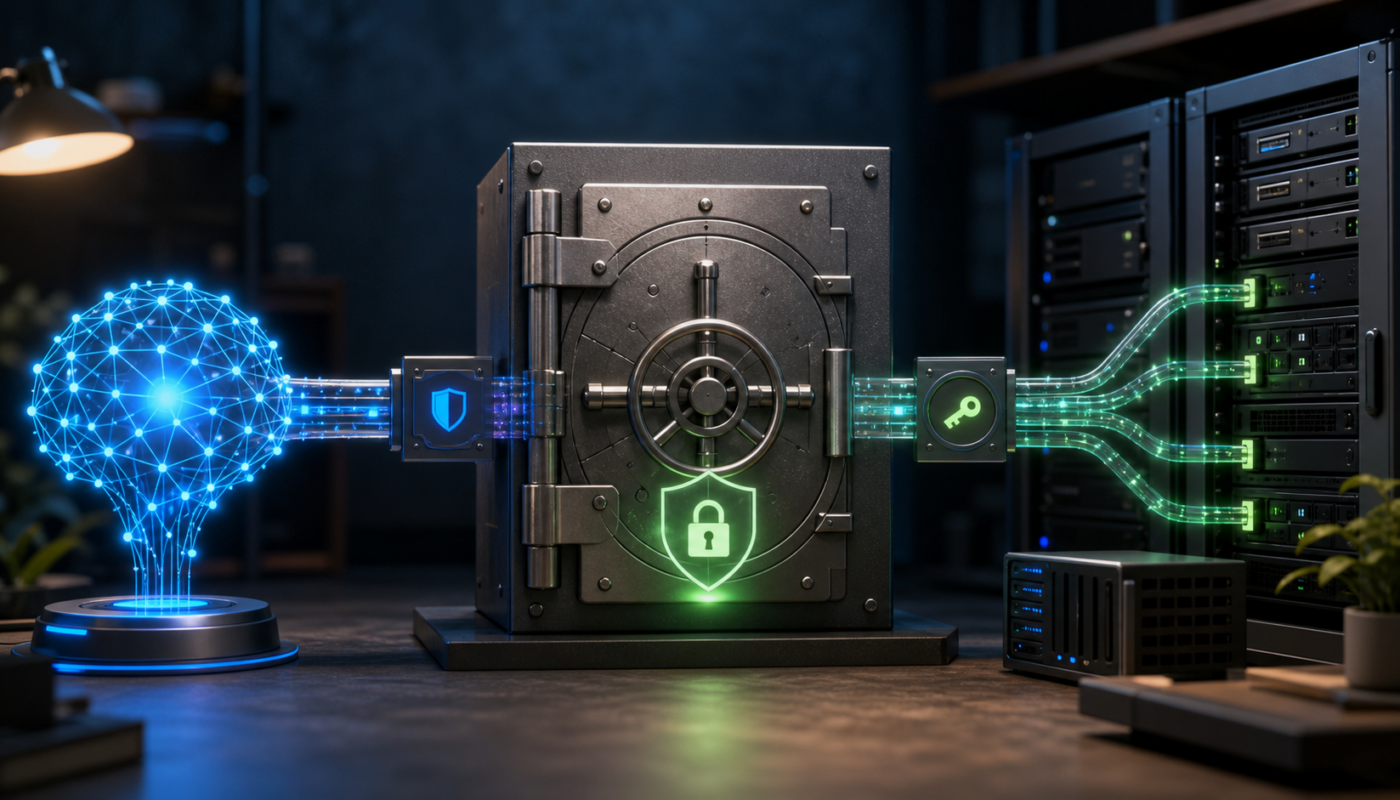
Think of MCP as a bridge.
If the bridge connects to your entire vault, that is risky.
If the bridge connects only to one read-only machine account with access to one project, that is much safer.
Good MCP pattern:
AI -> MCP -> Bitwarden Secrets Manager -> only proxmox-automation projectRisky MCP pattern:
AI -> MCP -> full personal Bitwarden vaultThe difference is huge.
My Preferred Architecture
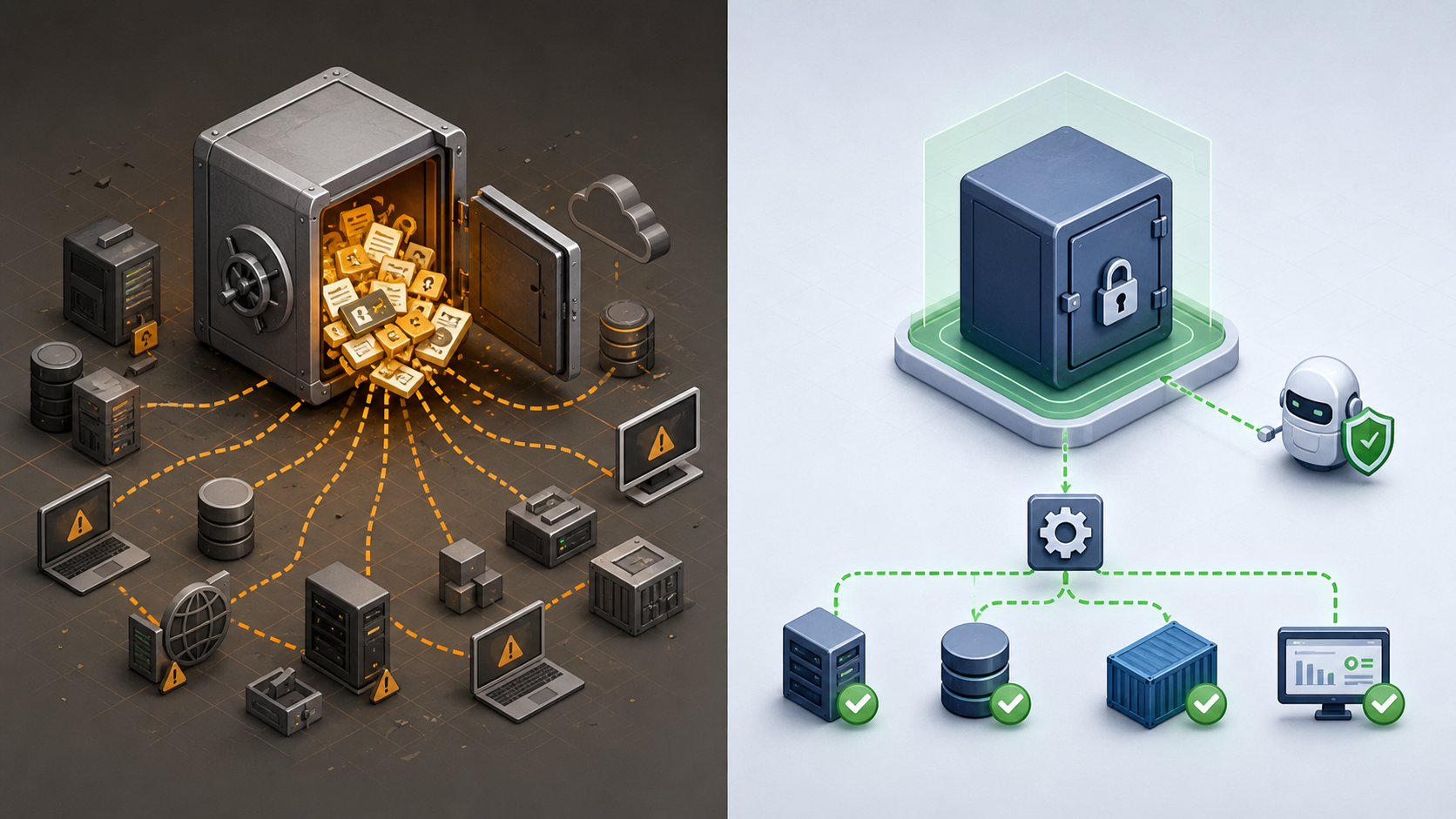
For my homelab, I would structure it like this:
Bitwarden / Vaultwarden
  Personal Vault
    - normal passwords
    - private logins
    - banking/email/etc.

Bitwarden Secrets Manager
  Project: proxmox-automation
    - Proxmox API token
    - backup token
    - monitoring token

  Project: cloudflare-automation
    - DNS API token
    - tunnel token

  Project: npm-automation
    - NGINX Proxy Manager API details

AI Machine Account
  - read-only access only to required projects
This gives a nice balance between convenience and control.
Common Mistakes to Avoid
- Giving AI access to your full personal vault
This is unnecessary and risky. - Using root passwords instead of API tokens
API tokens are easier to scope and revoke. - Storing secrets in git
Always add.envto.gitignore. - Using one token for everything
Create separate tokens for separate jobs. - Assuming read-only means invisible
Read-only prevents modification, not necessarily disclosure. - Exposing MCP over the network
Password manager MCP servers should stay local or tightly controlled. - Printing secrets during debugging
Most leaks happen through logs, not hackers.
Final Thoughts
AI automation is becoming extremely useful for homelab administration. It can help manage Proxmox, Docker, NGINX Proxy Manager, Cloudflare, monitoring tools, backups, and more.
But the moment AI starts performing real administrative work, secrets management becomes part of the design.
For me, the best approach is not “never let AI touch secrets.” That would make automation painful.
The better approach is:
Give AI the minimum secret access required,
through a dedicated machine account,
scoped to specific projects,
preferably read-only,
using tokens that can be revoked anytime.
In short:
Use Bitwarden Secrets Manager for infrastructure secrets, not your personal password vault. Use Proxmox API tokens, not root passwords. Keep MCP local. Keep access scoped. And never print secrets unless you enjoy rotating credentials at midnight.
That setup gives you the power of AI automation without turning your password vault into an open buffet.
Sources I used for accuracy: Bitwarden MCP Server, Bitwarden MCP announcement, Bitwarden collection permissions, Bitwarden Secrets Manager projects.
Where This Fits in a Practical AI Workflow
This secrets pattern becomes more useful when you connect it to the tools that actually do the work. For example, Codex can run repository tasks, deployment scripts, Proxmox checks, or Cloudflare DNS updates, but it should receive only the specific token required for that task. Claude, Cursor, and other MCP-capable assistants can follow the same pattern if the secret boundary is kept narrow.
The important implementation detail is to keep the assistant separated from the vault. Let the approved script or MCP layer retrieve a named credential, use it, and avoid printing it back into chat, logs, screenshots, or git history.
Related reading
- Microsoft Security Copilot and AI security thinking
- Introduction to Windows Power Automate Desktop
- Locally hosting a Google AI App Studio app with Docker