


 by
In our earlier guide on Removing Passwords from Your Own PDFs Using Command Line Tools, we explored how tools like qpdf provide an instant, scriptable method to decrypt owner-authorized documents. While CLI commands and PowerShell scripts are perfect for sysadmins, enterprise operations teams and non-technical staff require a visual, repeatable, and audited solution.
Whether you are ingesting hundreds of password-protected monthly utility bills, decrypting client statements for internal archival, or staging files for our Local OCR & AI Document Reassembly Pipeline, doing this manually is a recipe for operator fatigue and data leaks.
In this tutorial, we will build an automated unattended batch flow using Power Automate Desktop (PAD) on Windows 11 that handles credentials securely, validates decrypted page counts, and isolates corrupted files.
Important Compliance & Ethical Boundary
Strict Governance Rule: This automation workflow is exclusively for documents you own, generate, or have explicit contractual authorization to decrypt. It is designed to remove known administrative/owner passwords for enterprise archiving and indexing. It is not designed or intended to bypass third-party DRM, crack unknown passwords, or violate confidentiality agreements.
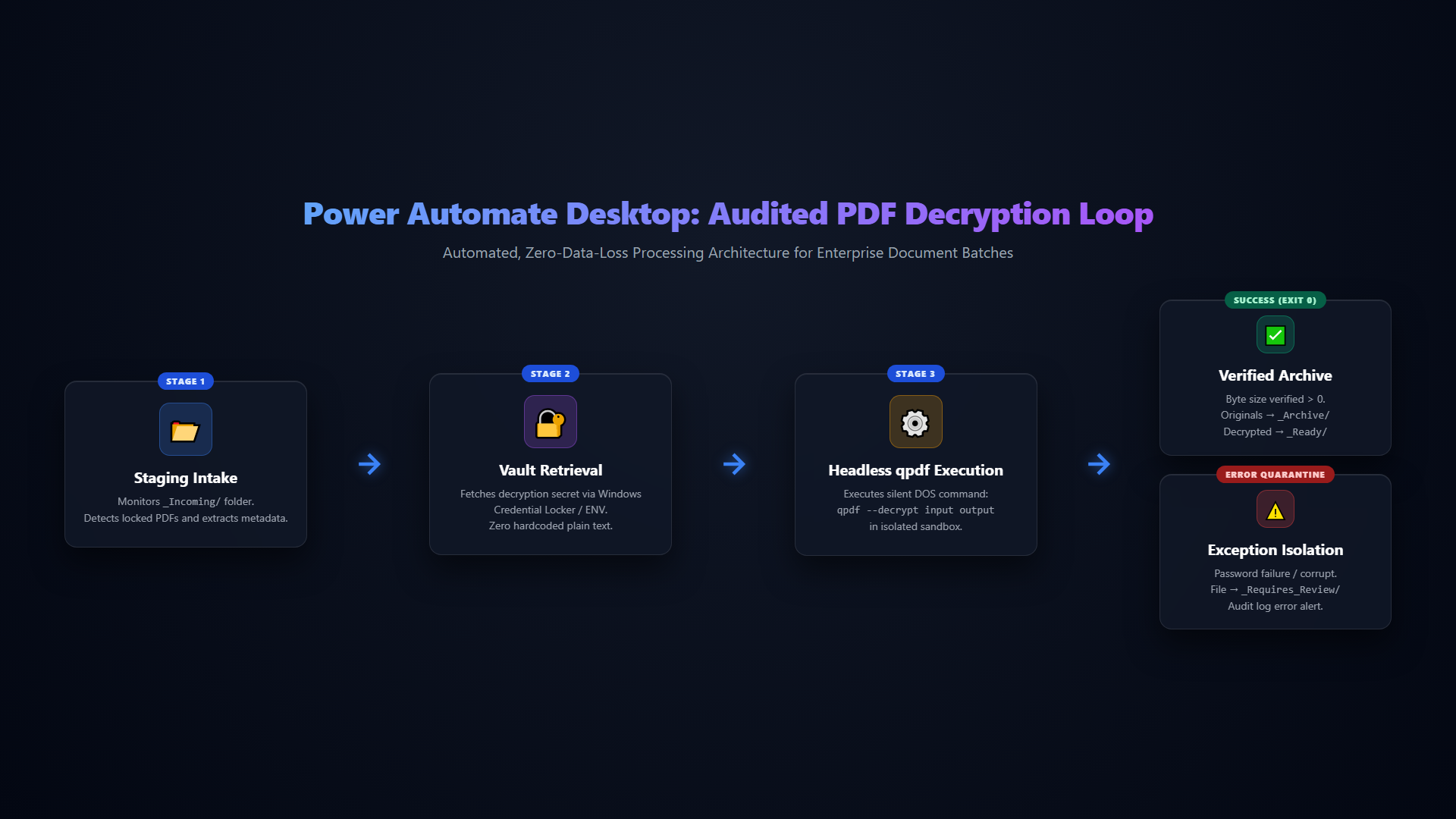
1. Architecture: The Audited Decryption Loop
flowchart LR
    A["📂 _Incoming/ Folder
Monitors Locked PDFs"] --> B["🔐 Windows Credential Locker
Secure Key Retrieval"]
    B --> C["⚙️ Headless qpdf Decryption
Silent DOS Execution"]
    C --> D{"Verification Check
Exit 0 & Size > 0"}
    D -->|Success| E["✅ Verified Archive & Ready/"]
    D -->|Failure| F["⚠️ Quarantine _Requires_Review/"]

    style A fill:#1e293b,stroke:#3b82f6,stroke-width:2px,color:#f8fafc
    style B fill:#1e293b,stroke:#a855f7,stroke-width:2px,color:#f8fafc
    style C fill:#1e293b,stroke:#38bdf8,stroke-width:2px,color:#f8fafc
    style D fill:#1e293b,stroke:#f59e0b,stroke-width:2px,color:#f8fafc
    style E fill:#064e3b,stroke:#34d399,stroke-width:2px,color:#f8fafc
    style F fill:#450a0a,stroke:#ef4444,stroke-width:2px,color:#f8fafc
📋 Click to view / copy raw Mermaid source
flowchart LR
    A["_Incoming/ Folder (Monitors Locked PDFs)"] --> B["Windows Credential Locker (Secure Key Retrieval)"]
    B --> C["Headless qpdf Decryption (Silent DOS Execution)"]
    C --> D{"Verification Check (Exit 0 & Size > 0)"}
    D -->|Success| E["Verified Archive & Ready/"]
    D -->|Failure| F["Quarantine _Requires_Review/"]
A resilient RPA flow does more than blindly run a decryption command. It enforces a strict containment cycle:
- Credential Retrieval: Fetch decryption keys dynamically from the local Windows Credential Locker or environment variables—never hardcoded in plain text.
- Atomic Iteration: Loop through incoming PDFs in an
_Incoming/staging folder one by one. - Headless Decryption: Execute a silent DOS command invoking
qpdf --decryptto an isolated staging path. - Assertion & Page Count Match: Verify that the output PDF exists, possesses a non-zero byte size, and matches the original document page count.
- Safe Routing: Move verified decrypted files to
_Decrypted_Ready/and quarantine password mismatches or corrupted files into_Requires_Review/.
2. Setting Up the Power Automate Desktop Subflow
If you are new to desktop automation on Windows, review our primer on Introduction to Windows Power Automate Desktop and our blueprint for Setting Up a Dedicated WPAD Worker Machine.
In Power Automate Desktop, you can paste the following action script directly into your flow designer:
# Step 1: Define Working Directories
SET StagingFolder TO $'''C:\\Automation\\PDF_Batch\\_Incoming'''
SET OutputFolder TO $'''C:\\Automation\\PDF_Batch\\_Decrypted_Ready'''
SET FailedFolder TO $'''C:\\Automation\\PDF_Batch\\_Requires_Review'''
SET QpdfBinary TO $'''C:\\Tools\\qpdf\\bin\\qpdf.exe'''

# Step 2: Retrieve Password Securely from Environment or Input
System.GetEnvironmentVariable VariableName: $'''PDF_BATCH_SECRET''' VariableValue=> BatchPassword

# Step 3: Get List of Locked PDFs
Folder.GetFiles Folder: StagingFolder FileFilter: $'''*.pdf''' IncludeSubfolders: False FailOnAccessDenied: True SortBy1: Folder.SortBy.NoSort SortDescending1: False SortBy2: Folder.SortBy.NoSort SortDescending2: False SortBy3: Folder.SortBy.NoSort SortDescending3: False Files=> LockedPDFs

# Step 4: Batch Processing Loop
LOOP FOREACH CurrentPDF IN LockedPDFs
    # Generate Output File Path
    Text.GetSubtext.GetSubtextFrom Text: CurrentPDF.NameWithoutExtension Position: 0 Subtext=> CleanName
    SET TargetDecryptedPath TO $'''%OutputFolder%\\%CleanName%_Unlocked.pdf'''

    # Execute Headless Decryption via qpdf
    System.RunDOSCommand.RunDOSCommand DOSCommandOrApplication: $'''\"%QpdfBinary%\" --password=\"%BatchPassword%\" --decrypt \"%CurrentPDF.FullName%\" \"%TargetDecryptedPath%\"''' WorkingDirectory: StagingFolder StandardOutput=> CommandOutput StandardError=> CommandError ExitCode=> QpdfExitCode

    # Verify Execution
    IF QpdfExitCode = 0 THEN
        # Verify File Exists and Has Size
        File.GetSize File: TargetDecryptedPath FileSize=> DecryptedSize
        IF DecryptedSize > 0 THEN
            # Archive original to Processed
            File.Move Files: CurrentPDF.FullName Destination: $'''C:\\Automation\\PDF_Batch\\_Originals_Archive''' IfFileExists: File.IfExists.Overwrite
            Text.WriteText File: $'''C:\\Automation\\PDF_Batch\\audit.log''' TextToWrite: $'''[SUCCESS] %CurrentPDF.Name% successfully decrypted.''' AppendNewLine: True
        END
    ELSE
        # Quaratine failed file for manual review
        File.Move Files: CurrentPDF.FullName Destination: FailedFolder IfFileExists: File.IfExists.Overwrite
        Text.WriteText File: $'''C:\\Automation\\PDF_Batch\\audit.log''' TextToWrite: $'''[FAILED] %CurrentPDF.Name% - Error: %CommandError%''' AppendNewLine: True
    END
END
3. Three Critical Edge Cases Handled
When running this in production batches across thousands of documents, simple scripts break. Here is how our architecture handles real-world friction:
- Special Characters in Passwords: Passwords containing double quotes, percent signs (
%), or ampersands can break command line arguments. By wrapping parameters strictly in escaped quotes and passing them via environment variables rather than hardcoded string concatenation, command injection and syntax crashes are avoided. - Partially Decrypted Output on Abort: If Power Automate crashes mid-decryption,
qpdfcreates an incomplete 0-byte file. The conditionIF DecryptedSize > 0prevents 0-byte corruptions from being marked as valid. - Owner vs. User Password Nuances: PDFs often feature both an Owner Password (restricting printing/editing) and a User Password (restricting opening).
qpdf --decryptwith the valid password clears both flags simultaneously, producing completely unlocked documents ready for downstream OCR indexing.
Executive Takeaways
- No Third-Party Cloud Uploads: Decrypting sensitive financial and legal records via third-party web converters violates GDPR and corporate data security policies. This entire workflow executes locally in your own Windows environment.
- Zero Code UI for Operations: Non-developers can trigger, monitor, or schedule this flow through the standard Windows Power Automate console without touching PowerShell.
- Immutable Audit Logging: Every decryption attempt writes a timestamped record to
audit.log, providing full traceability for compliance audits.