
 by
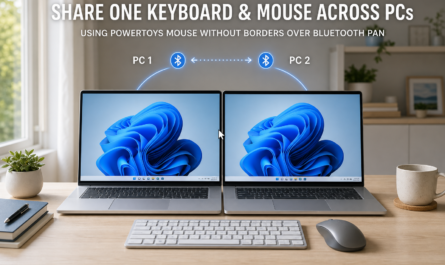
by If you have two Windows 11 machines sitting next to each other, you do not always need an Ethernet cable to create a simple peer-to-peer link. A Bluetooth PAN, short for Bluetooth Personal Area Network, can give you a small private network between the machines so they can talk to each other directly.
I have used this pattern to create a local link between a work machine and a personal machine with static IP addresses on the Bluetooth interface. That made it possible to communicate between the two systems even when each machine was connected to a different primary network.
Important note: Windows 11 Bluetooth PAN support is highly dependent on the Bluetooth controller and driver. On some modern systems, the legacy PAN or NAP options may not appear at all. If you do not see a Join a Personal Area Network or similar option in the legacy Bluetooth controls, this setup may not be possible on your hardware.
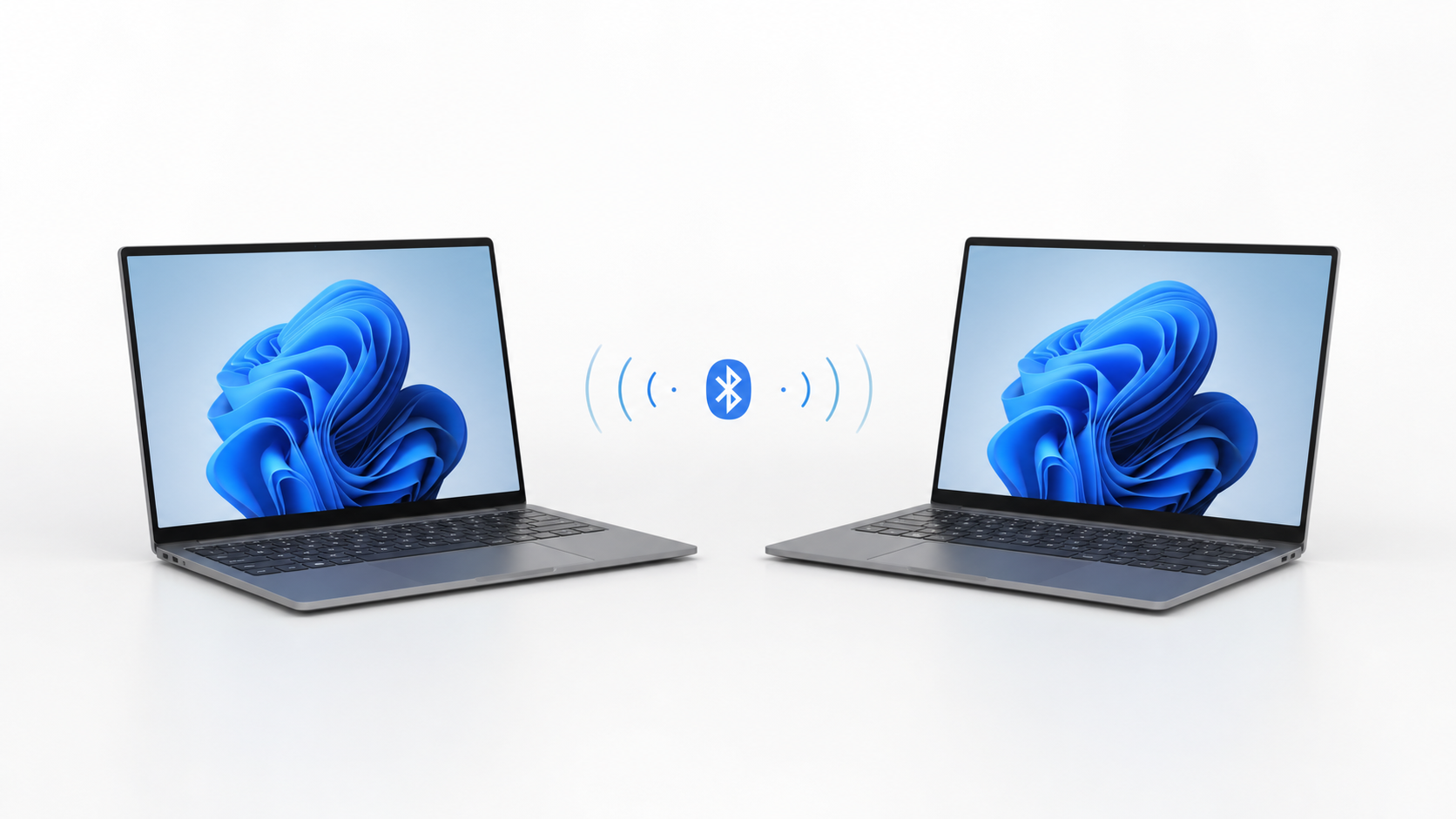
This is not a replacement for a proper VPN or a wired LAN in every situation. Bluetooth PAN is best for short-range, nearby systems where convenience matters more than bandwidth. If you need higher speed, lower latency, or reliable always-on connectivity, Ethernet or a VPN is still the better choice. But if the goal is simple peer-to-peer communication without running a cable, this works well.
What you need
- Two Windows 11 PCs with Bluetooth support.
- Bluetooth drivers installed and working on both machines.
- Administrator access on both systems.
- Static IPv4 addresses you can assign to the Bluetooth network adapter.
How Bluetooth PAN helps
Bluetooth PAN creates a small private network interface over Bluetooth. Once the two machines are paired and the PAN connection is active, Windows treats it like another network adapter. That means you can assign an IP address to it and use normal IP-based tools such as ping, remote shell tools, file sharing, or custom scripts.
Step 1: Pair the two computers
- Turn on Bluetooth on both Windows 11 machines.
- Open Settings and go to Bluetooth & devices.
- Start pairing from one machine and accept the pairing request on the other.
- Confirm that the pairing is successful on both sides.
Step 2: Make sure the PAN adapter is available
- Open Network Connections or Device Manager.
- Look for a Bluetooth network adapter or a network connection that appears after pairing.
- If it does not appear immediately, disconnect and reconnect Bluetooth, then recheck the adapters.
- Some systems may require the Bluetooth PAN service or profile to be enabled in the Bluetooth settings or adapter properties.
Step 3: Connect the PAN link
- Open the legacy Control Panel and go to Devices and Printers.
- If the modern Settings app does not expose the PAN connection, right-click the paired device and look for Connect using or a similar Bluetooth network option.
- Select the PAN or Access Point option if Windows exposes it.
- Wait until Windows shows the Bluetooth network link as connected.
- Verify that both machines see a live network interface for the Bluetooth connection.
Step 4: Assign static IP addresses
Once the Bluetooth PAN interface is active, assign fixed IPv4 addresses on that adapter only. Keep the addresses in a private range that does not overlap with either machine’s regular Wi-Fi or Ethernet network.
- Example address for PC 1:
192.168.50.1 - Example address for PC 2:
192.168.50.2 - Subnet mask:
255.255.255.0
If you want maximum clarity, keep the Bluetooth link on its own subnet and avoid using the same subnet as your home or office network.
Step 5: Test connectivity
- Open Command Prompt or PowerShell on both machines.
- From PC 1, run
ping 192.168.50.2. - From PC 2, run
ping 192.168.50.1. - If ping fails, make sure the Bluetooth adapter is set to a Private network profile rather than Public.
- If needed, temporarily disable the firewall on the Bluetooth network profile only, then test again.
- Once the link works, re-enable the firewall and allow only the traffic you actually need.
Step 6: Use the link for peer-to-peer work
After the two systems can reach each other by IP, you can use the Bluetooth PAN connection for small local workflows such as remote admin commands, file transfer, quick service checks, or custom application communication.
- Use it for lightweight control and coordination.
- Do not expect high throughput.
- Do not treat it as a replacement for a proper corporate network design.
Common issues
- If the adapter does not appear, update Bluetooth drivers first.
- If pairing succeeds but networking does not, check whether the PAN profile is supported by the adapter.
- If ping works one way but not the other, check Windows Firewall rules on both sides.
- If the link is unstable, reduce distance and remove Bluetooth interference from nearby devices.
- If the IPs conflict with another subnet, change the Bluetooth subnet before troubleshooting anything else.
Why this approach is useful
This is a neat workaround when you want two nearby Windows machines to talk without extra cables. It is simple, local, and practical. More importantly, it gives you a controlled peer-to-peer path that stays separate from whatever the two machines are using for their main internet or office connectivity. In an era of cloud-first networking, keeping the ability to create ad-hoc, air-gapped peer-to-peer links is still a useful analog skill for isolated troubleshooting or local hardware interactions.
Related reading
- How to Extract a Web Table Behind Login to Excel or PDF Safely
- How to Bulk Export URLs from Microsoft Edge Tabs
- How to set up a Windows Power Automate Desktop worker machine